
There are three ways to use a template to create a new takeoff on a project:
Create a takeoff from the templates panel
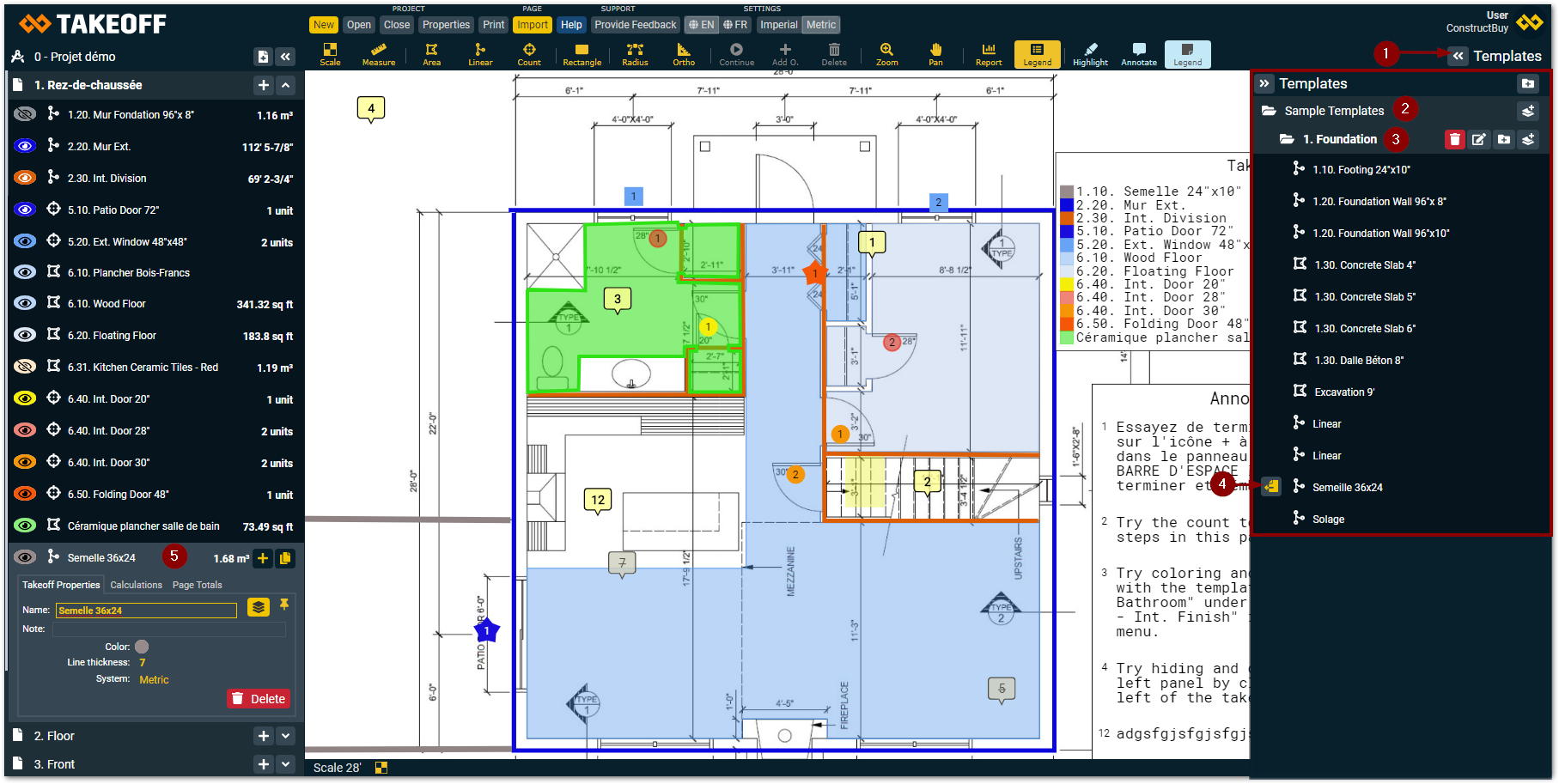
-
Click on the button at the left of “Templates” in the superior right corner of the screen
-
Click on “Sample templates”
-
Click on the folder in which you want to add a template
-
Move your mouse over the name of the template of your choice to make appear the icon at the left of name of the template, then click on it
-
A new takeoff will appear in the left panel
Use the templates suggestion list
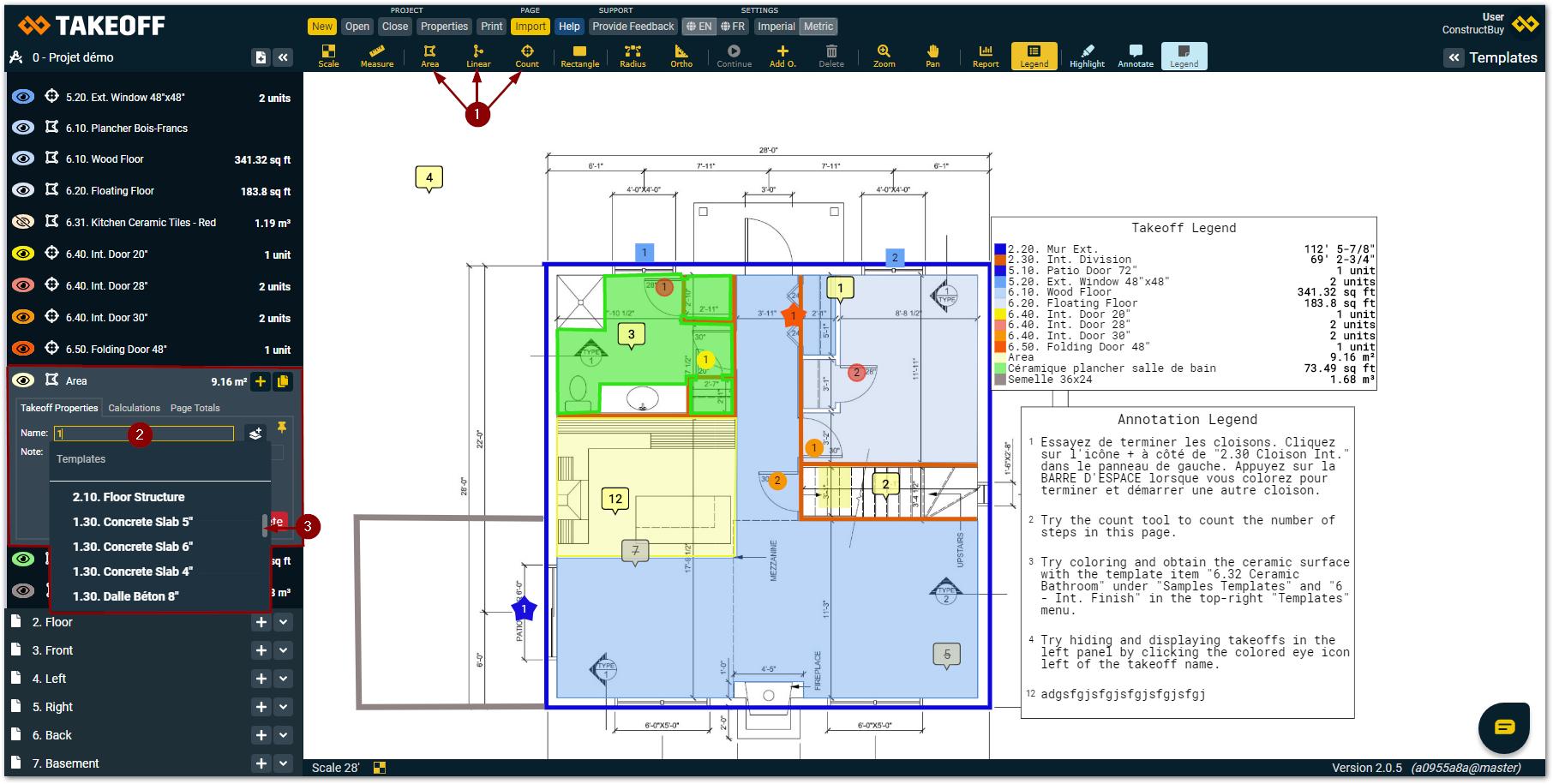
-
Create a new takeoff of the desired type (area, linear or count) by using the toolbar at the top of the screen
-
Start typing the name of your takeoff and an ascending list will appear
-
Choose from this list the template you want to use and click on it
Manually link a takeoff project to a takeoff template
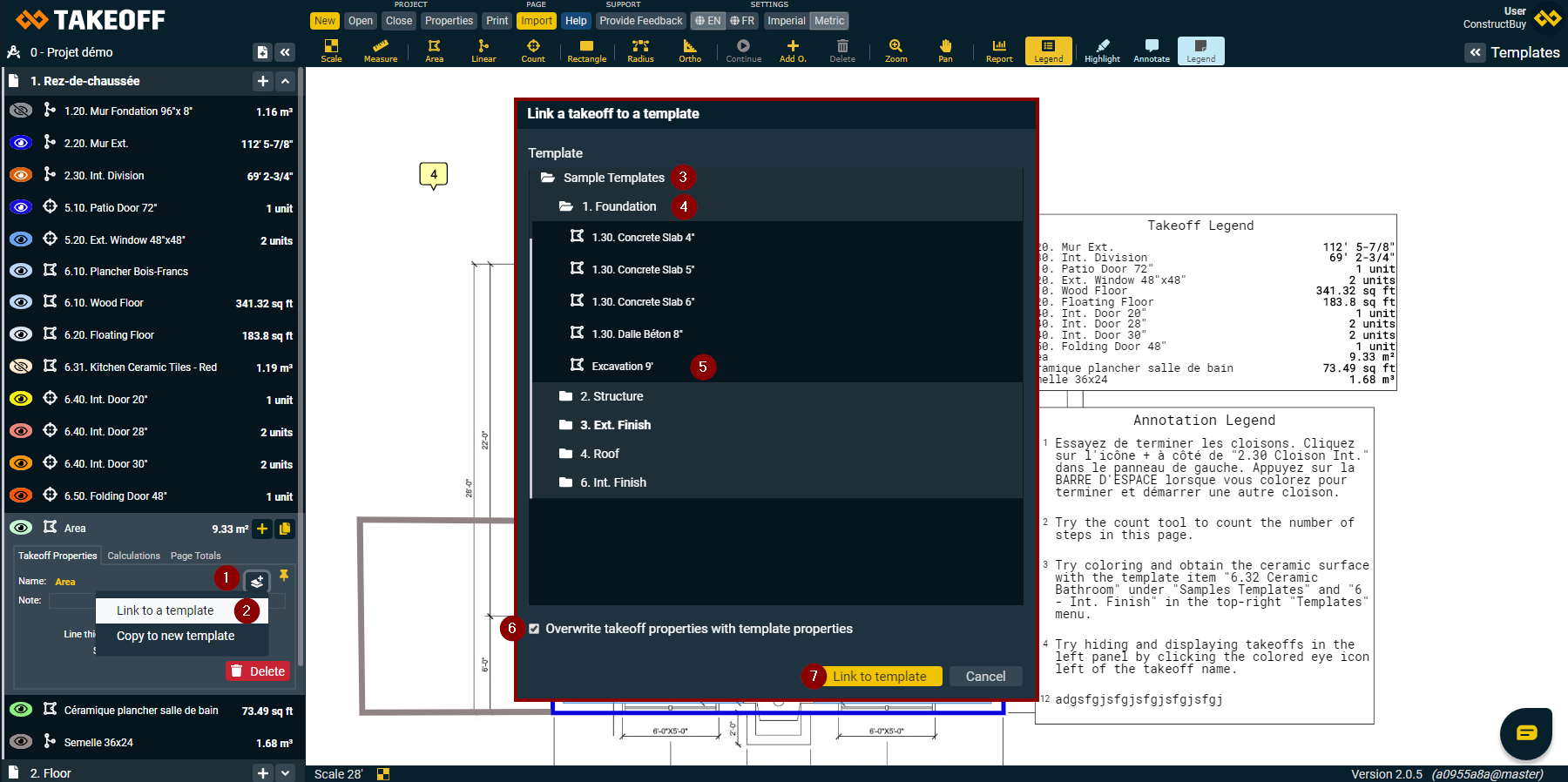
-
Choose the takeoff that you want to link to your template and click on the icon beside the name of the takeoff in your “Takeoff properties”
-
Click on “Link to a template” in the new menu that opened
-
Open the “Sample Templates” folder by clicking on it
-
Open the folder the template you want to use is in
-
Select the template of your choice
-
Remove or add a check mark in the box beside “Overwrite takeoff properties with template properties” at the bottom of the window depending on what you want
-
Click on the yellow button “Link to template” and your takeoff will automatically associate to your selected template