
Below are the instructions for downloading, completing, and importing your partner list.
Download the Partner Import Template
-
Download the Partner Import Template by clicking here.
-
Open the file using a spreadsheet application such as Microsoft Excel or Google Sheets.
Complete the Partner Import Template
-
Download the ImportPartnersTemplate file using the provided link.
-
Enter the requested information in the appropriate columns.
-
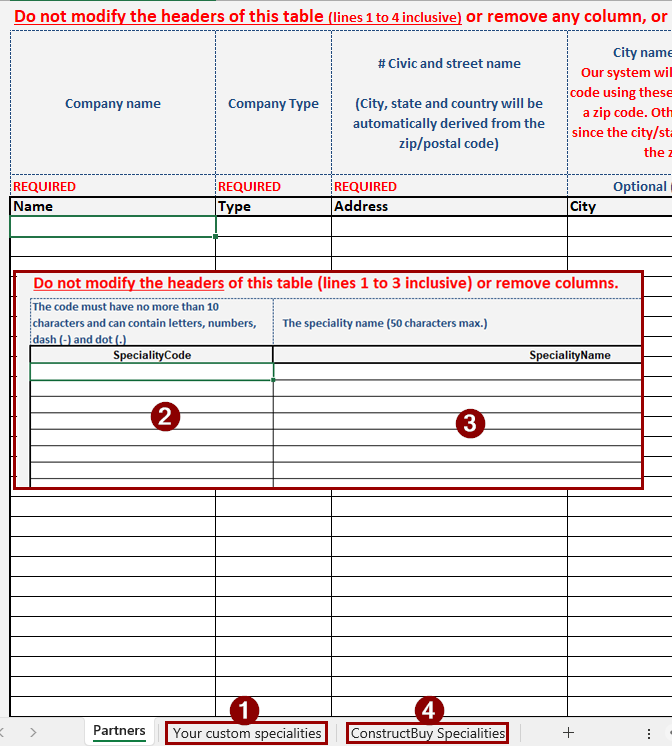
Go to the “Your Custom Trades” tab
-
Enter your company's list of trades.
-
In the left column, enter the trade code, in the right column, enter the trade name.
-
You can also copy and paste all or part of the ConstructBuy trade codes and trade names from the “ConstructBuy Trades” tab, depending on the trades you want to use to categorize your partners.
-
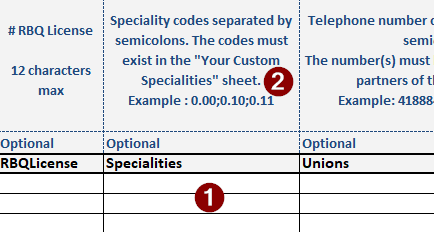
In the "Specialties" column of the "Partners" tab in the ImportPartnersTemplate file, enter the specialties you want to assign to each specific partner.
-
If you want to assign more than one specialty to a partner, follow the instructions at the top of the column:
Separate specialty codes with semicolons. Example: 0.00;0.10;0.11
Import the Partner Import File
Once you have completed all of the steps above, you can import your partner list.
Follow this link to import your completed partner list.
If some of the partners in your import file already exist in your ConstructBuy partner list, the two records will be merged automatically during the night following the file import.
If you need additional assistance or information, please do not hesitate to contact our technical support team.