If you would like to choose who within your company receives notifications and emails regarding document additions and project updates, please follow the instructions below.
Set up your project’s primary contact
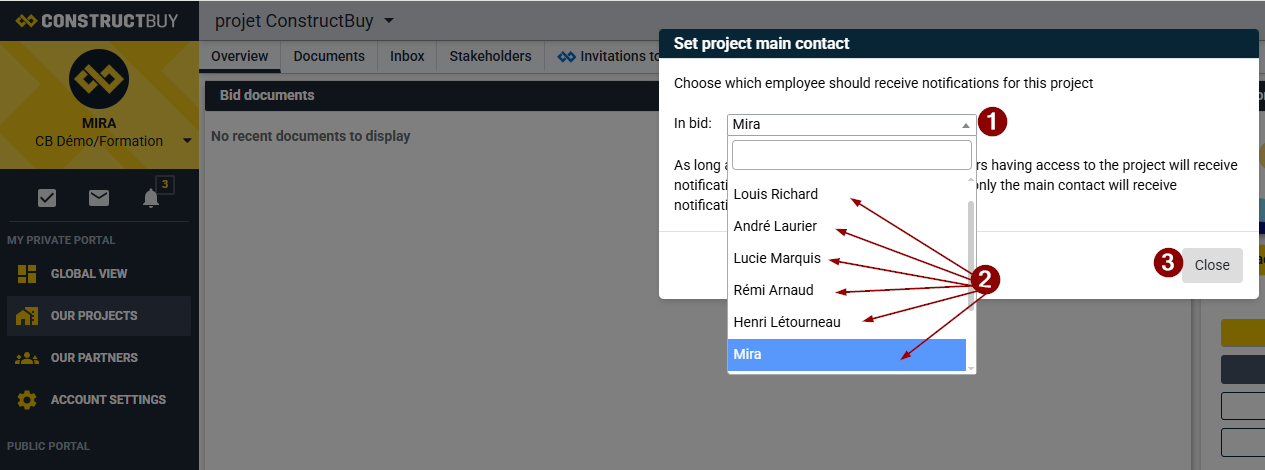
When opening the project in ConstructBuy, if the project’s primary contact has not already been set, the following window will automatically open:
-
Click on the arrow to open the user name drop-down list.
-
Select the user you would like to set as the primary contact (only one primary contact can be assigned per project).
-
Click “Close”.
Only users registered to the account can be selected as the project’s primary contact.
Configure notifications and the primary contact
-
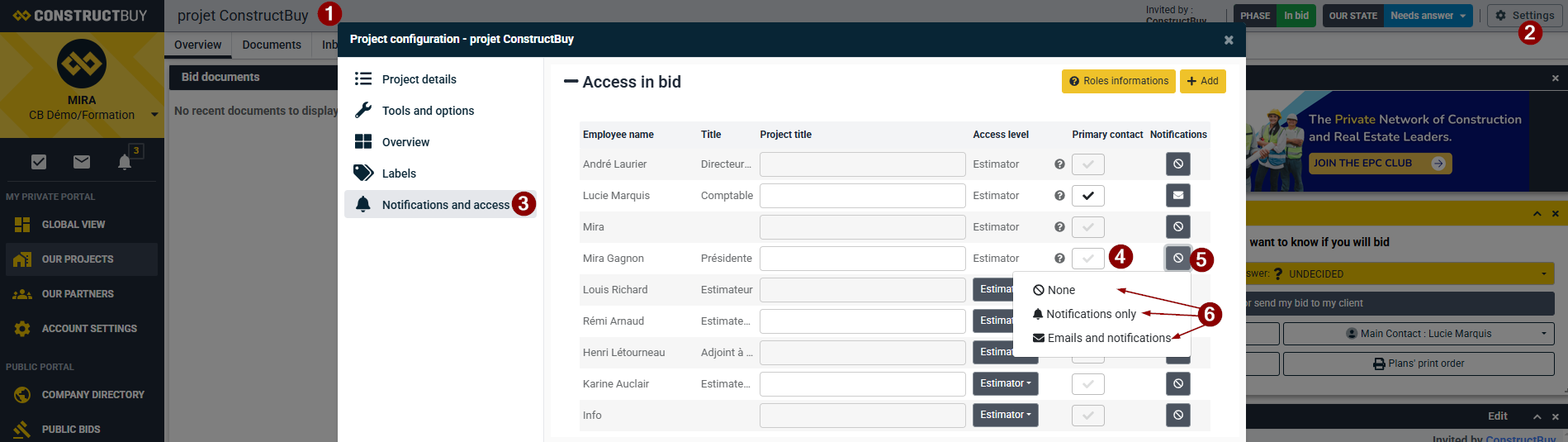
Make sure you are in the project for which you want to modify the notification settings.
Click “Project Settings”, located at the top right of the page.
Select “Notifications and Access”, located on the left.
Check the box in the “Primary Contact” column, to the right of the user you want to set as the primary contact (only one primary contact can be assigned per project). -
If you would like to modify the notifications sent to a user, click the icon located to the right of the corresponding user’s name in the “Notifications” column.
-
Select the type of notifications you would like this user to receive for this project. If you select:
-
“None”, no notifications (by email or through ConstructBuy) will be sent to this user.
“Notifications Only”, the user will only receive notifications through their ConstructBuy account.
“Emails and Notifications”, the user will receive both notification emails and notifications through their ConstructBuy account.
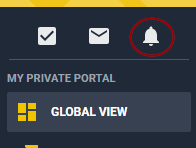
ConstructBuy account notifications are visible in the top right corner of any page in your ConstructBuy portal: